Bulk Skip Tracing: Upload a List of Property Owners
Step-by-step walkthrough of the four-step bulk trace wizard, from CSV upload to downloading results.
Bulk skip tracing turns a CSV of property owners into a contact list — phones, emails, and mailing addresses — in a single job. This guide walks the whole flow in Dashboard → Skip Tracing → Bulk Trace. If you want to run the same jobs from code, see the bulk jobs API.
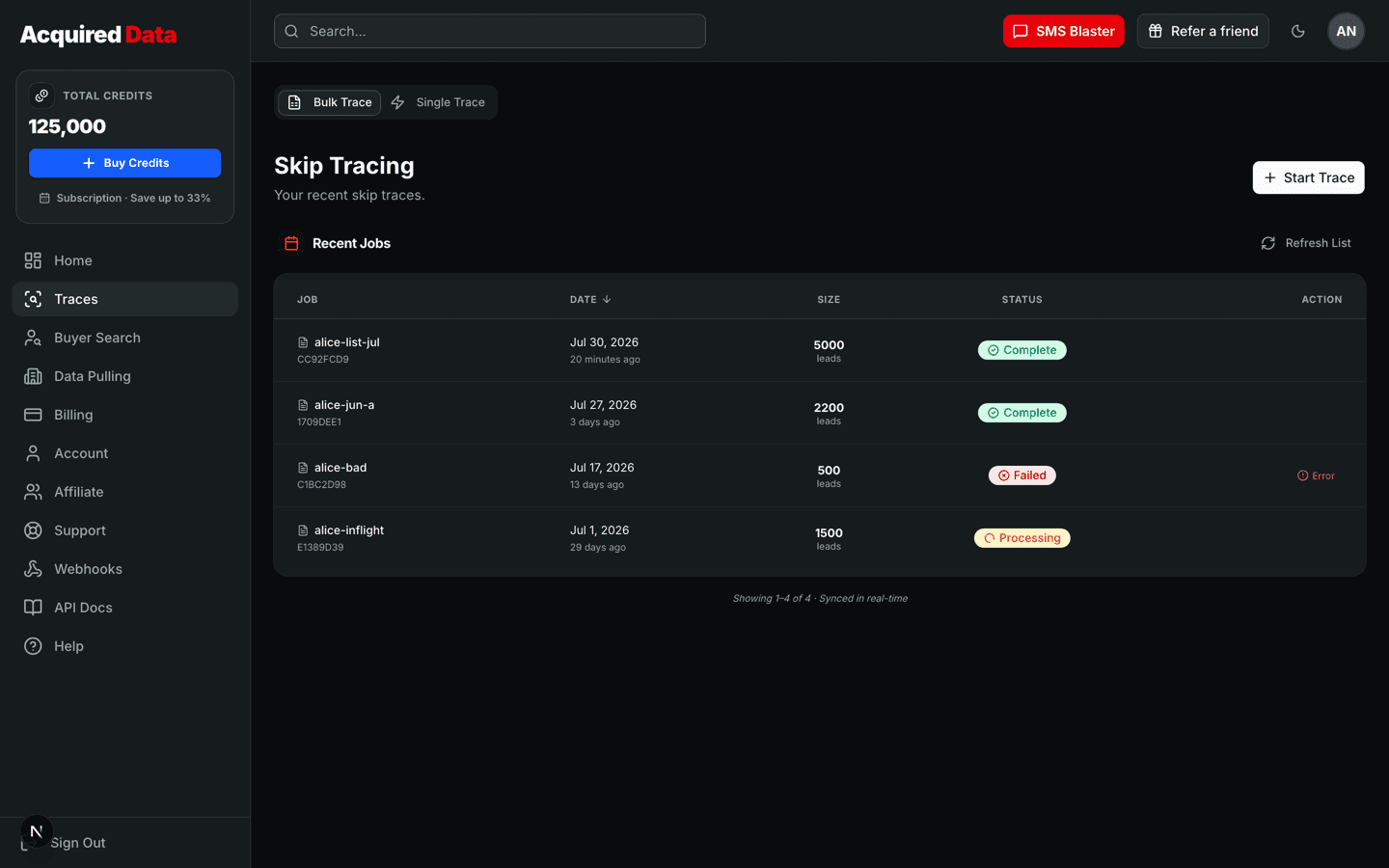
Prepare your CSV
Any .csv file works as long as each row has, at minimum, an owner name (first or last), a property address, and a state. City and ZIP improve match rates, and a mailing address helps when the owner does not live at the property. Exports from Propwire, PropStream, and similar list tools work as-is — their column headers are recognized automatically, and extra columns are simply ignored.
Step 1: Upload and map columns
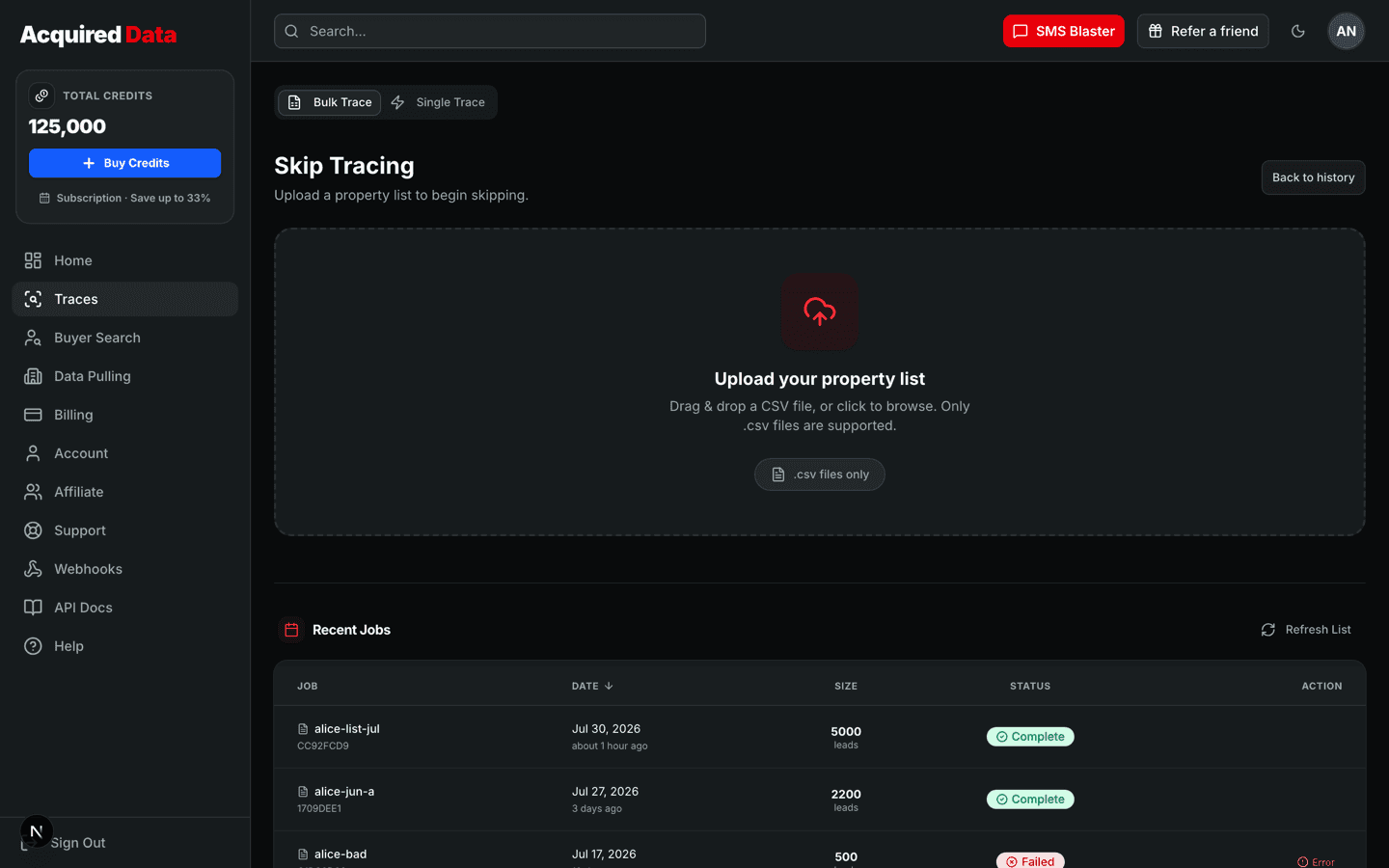
- Drag your CSV into the upload zone (or click to browse). Only
.csvfiles are accepted, one file at a time. - The wizard opens on Map Fields. Common headers —
Owner 1 First Name,Property Address,Mailing City,APN,Owner Type, and so on — are auto-mapped for you. A preview table shows your file so you can check the mapping against real rows. - Fix any field the auto-mapper missed using the dropdowns on the right. You can map owner name, property address/city/state/ZIP, mailing address/city/state/ZIP, county, APN, owner type, and property use.
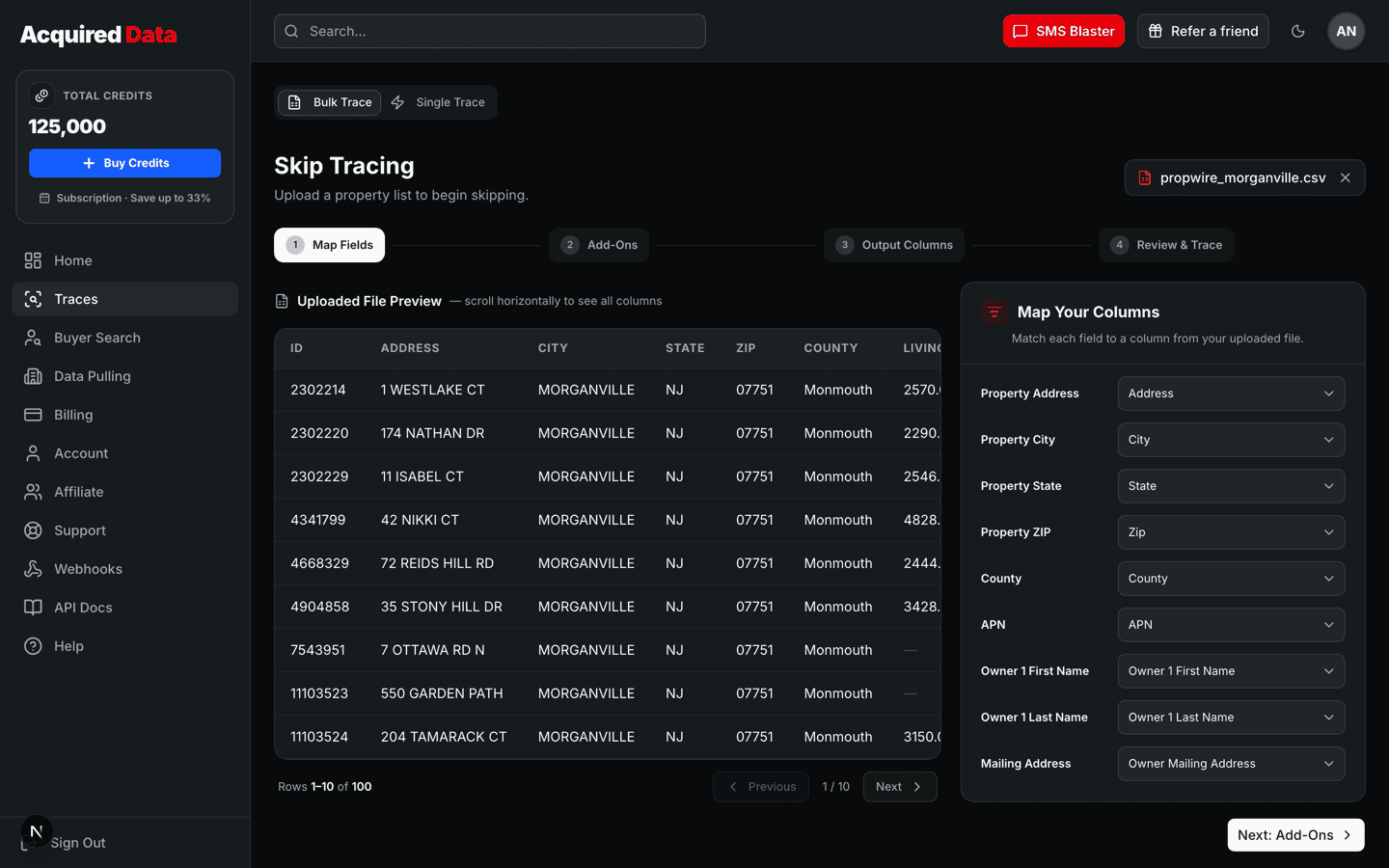
For the best match rate, map an owner name plus the property address and state. The wizard warns you if these essentials are missing but does not block you — unmapped essentials just lower results.
Step 2: Choose add-ons
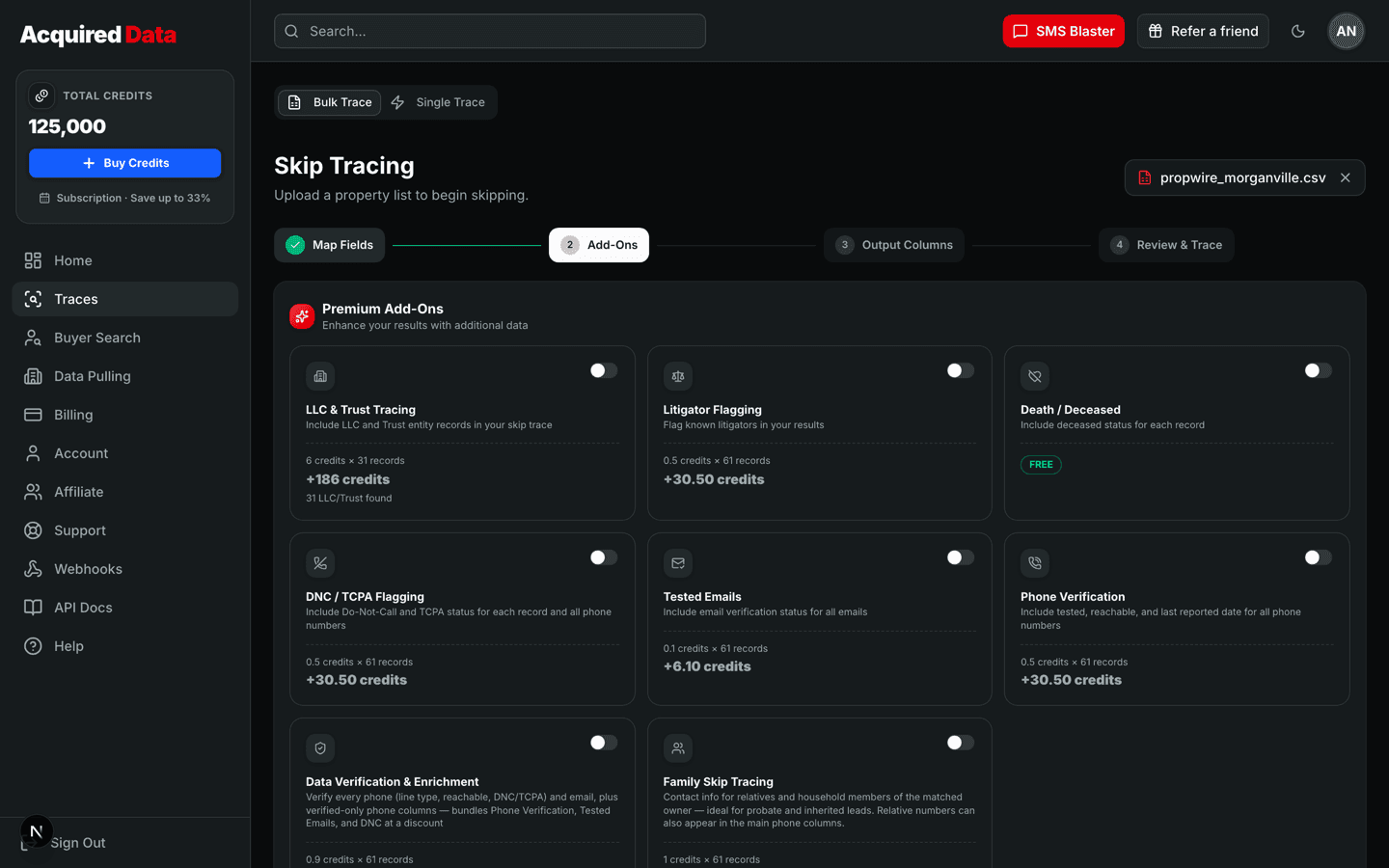
The Add-Ons step lets you attach premium data to every traced row: DNC/TCPA flags, phone verification, tested emails, litigator flags, deceased status, family contacts, and LLC/Trust tracing. Each add-on shows its per-row price and running total before you commit. Pick add-ons before output columns — add-ons determine which columns exist downstream. See the add-ons guide for what each one returns and costs.
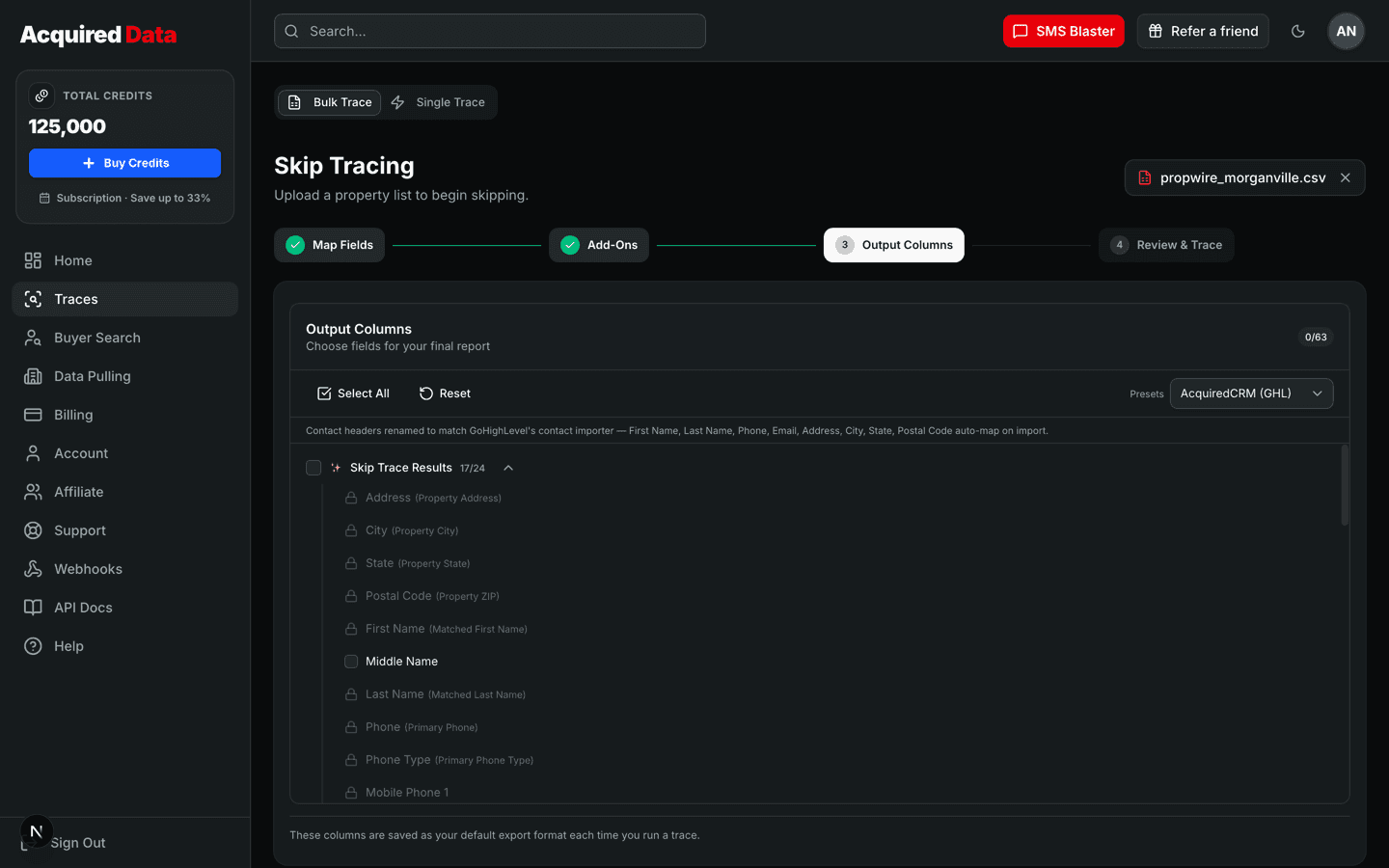
Step 3: Pick output columns
The Output Columns step controls which columns appear in your result CSV, grouped into sections like phones, emails, mailing address, and property details. Core result columns are locked on; add-on-gated columns unlock automatically when you enable the matching add-on. Your selection is saved as your account's default export format each time you run a trace, so repeat jobs need no reconfiguration.
Step 4: Review and run
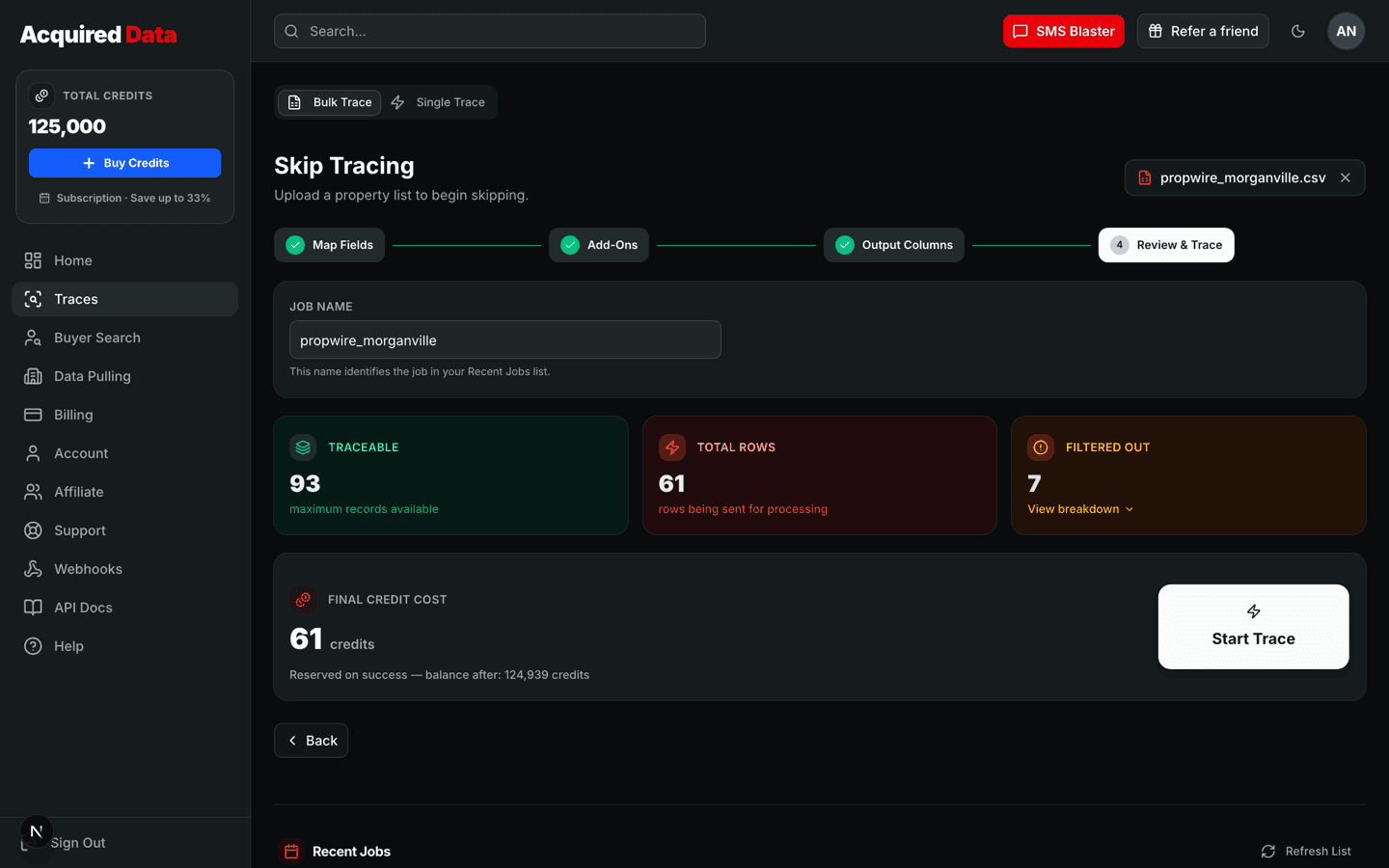
The review step shows three counts before anything is charged:
- Traceable — the maximum rows that can be traced.
- Total Rows— what will actually be sent (LLC/Trust rows are included only when the LLC & Trust add-on is on).
- Filtered Out — rows that cannot be skip-traced because there is no owner name and the property address is too incomplete to locate. Rows with a full property address but no owner name are still traced (by address). Filtered rows are never charged; click "View breakdown" for reasons.
You will also see the final credit cost and your balance after the job — pricing is always shown live before you confirm. Name the job (it defaults to the filename), then click Start Trace.
Processing
Jobs of 1,000 rows or fewer run synchronously and finish in-page with a live progress bar. Larger lists are submitted as background jobs — you can dismiss the progress overlay and keep working, or even close the tab; progress stays visible in the history table. One active bulk trace runs per account at a time, so wait for a job to finish before starting the next.
Downloading results
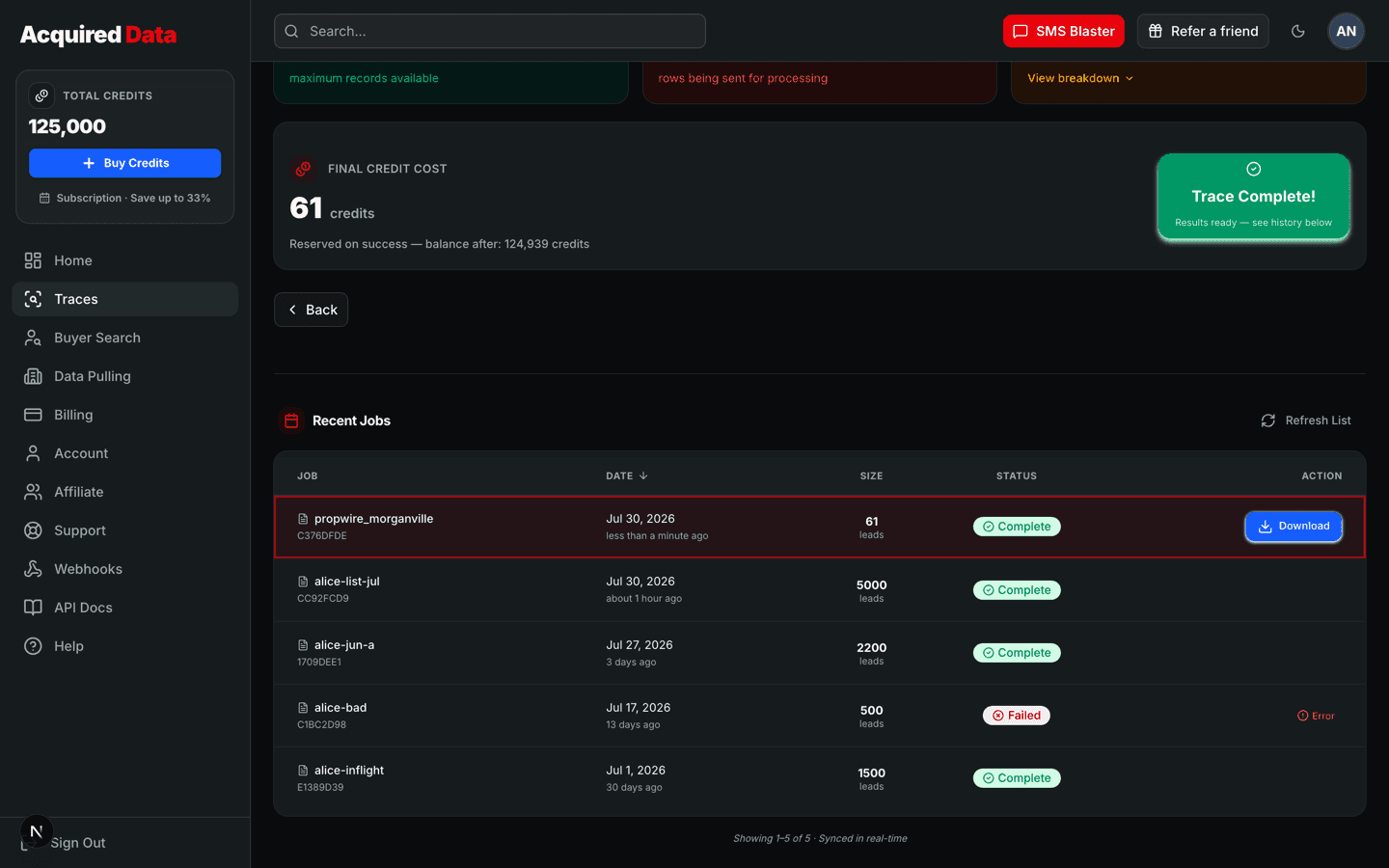
Finished jobs appear in Recent Jobs with a Download button. You can rename the file before saving; results are delivered as a CSV using the output columns you selected. Each job shows a status:
| Status | Meaning |
|---|---|
pending / processing | The job is queued or actively tracing. |
submitted | A background job has been handed off and is awaiting results. |
complete | Results are ready to download. |
failed | The job could not finish. |
refunded | A failed job's credits have been returned to your balance. |
How billing works
- Credits are charged upfront for every traceable row you submit, at the price shown on the review step.
- Rows that return no match are not refunded — matching is attempted on every submitted row.
- If a job fails entirely, all charged credits are automatically returned to your balance.
- These automatic credit refunds are separate from money refunds — credit purchases themselves are non-refundable per the Terms. See Credits & Billing for details.
Running one-off lookups instead? Use Single Trace. To automate bulk jobs — including uploading the same CSVs programmatically — see the bulk jobs API and completion webhooks.
Keep reading
Single Skip Trace: Look Up One Owner
Run a one-off lookup for an individual or company and read the results inline.
Read →Skip TracingPremium Add-Ons Explained
Every skip-trace add-on, what it returns, what it costs, and when to use it.
Read →Getting StartedGetting Started
Create your account, add credits, and run your first skip trace — a five-minute tour of the platform.
Read →